AI
How AI Is Transforming Document Processing in SharePoint

Head of Product - CPO, AODocs · Oct 30, 2025
For some organizations, SharePoint still meets many of their document management needs
In such cases, the next step need not be migration, it’s modernization. By integrating reliable AI capabilities into SharePoint and Power Automate, IT leaders can accelerate document processing, reduce manual effort, and bring intelligence to existing workflows.
Across industries, organizations are rethinking how they manage their documents. Many are reaching an inflection point.
Their existing systems (especially on-premise versions of legacy Document Management Systems (DMS)) are struggling to keep up with the demands of the AI era.
With that, the question arises: Should I stay or should I go?
Some companies choose to migrate to third-generation AI-enabled DMS platforms, designed from the ground up for intelligent automation, scalability, and compliance. These migrations, when well planned, can unlock major productivity and governance gains across the enterprise.
But for others, migration is not an immediate option. They rely heavily on SharePoint to store and manage business-critical content and want to expand their AI capabilities without replacing their DMS. Their goal: to modernize where it matters most, disrupting established systems or workflows.
This is where AI integration in SharePoint becomes a powerful alternative.
The Hidden Costs of Manual Review
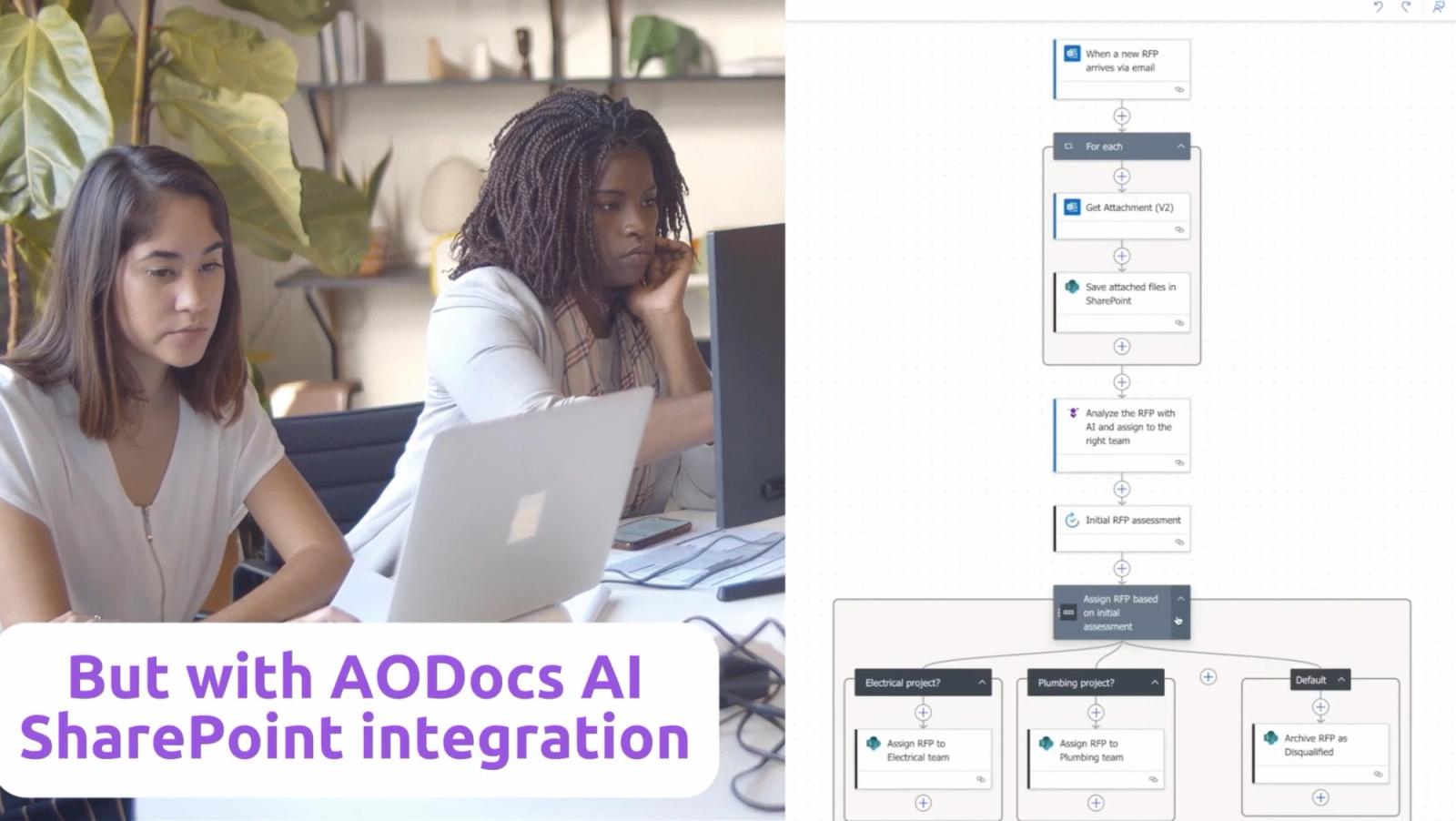
Consider, for example, a large engineering firm managing incoming Requests for Proposals (RFPs). Each RFP arrives as a long, unstructured document. A project manager must open the file, review the details, and decide whether it should go to the electrical or plumbing division. Or maybe it needs to be archived if it doesn’t fit the company’s scope.
If that manager is unavailable, the document sits idle. If the file is complex, it can take hours or even days to review. Multiply that by dozens of RFPs a week, and the result is a constant drain on time and attention. Beyond inefficiency, these delays can mean missed deadlines and lost business opportunities.
Bringing AI into the Workflow
Modern AI capabilities can now be embedded directly into SharePoint workflows through Power Automate. Instead of relying on people to manually read and classify every document, organizations can introduce an AI analysis step that handles the initial review automatically.
When a new RFP or document arrives via email, the AI scans its content, identifies the project type, extracts relevant details (such as location or budget), and routes it to the appropriate team. The process takes seconds, not days, and it happens entirely within the Microsoft 365 environment employees already use.
This approach doesn’t replace human judgment; it enhances and supports it. Routine decisions are handled automatically, while exceptions are flagged for human review.
Smarter Workflows, Tailored to Each Team
AI-driven automation in Microsoft 365 can be even more effective when it reflects the needs of specific teams. Specialized groups (such as legal, finance, or engineering) can configure custom AI steps to extract exactly the information they need from complex files.
For example, the electrical team might focus on technical specifications when analyzing an RFP, while the plumbing team reviews site conditions and materials. This selective intelligence helps each department move faster while maintaining precision and compliance.
Organizations can also connect their own Large Language Model (LLM) to enhance insight and control, especially when managing sensitive or proprietary information.
From Hours to Minutes
When AI handles the initial layer of document review, teams experience dramatic improvements in speed, precision, and consistency. Assignment and validation steps that once took hours are completed automatically, and manual review happens only when needed. The result is a more reliable process, shorter turnaround times, and teams that can focus on higher-value work instead of repetitive checks.
Integrating with SharePoint and Power Automate
This kind of intelligent automation is now available directly within the Microsoft ecosystem through AODocs AI integration.
The solution allows organizations to:
- Add AI analysis steps to Power Automate workflows
- Automatically classify and route documents
- Extract key data points for specialized teams
- Connect custom LLMs for tailored insights
- Maintain full traceability and control across Microsoft 365
By introducing structured intelligence into existing workflows, organizations can modernize without replacing their DMS, unlocking the benefits of third-generation document management in a familiar environment.
Learn more
Whether your organization is preparing to migrate from a legacy system or enhancing its existing SharePoint environment, the path to intelligent document management starts with AI.
- Dive deeper into AODocs’ trusted AI capabilities
- Watch a quick demo to discover AODocs AI integration with Microsoft and Power Automate
Frequently asked questions
Can Power Automate process SharePoint documents without replacing SharePoint?
Yes. A configured Power Automate flow can use an AI Builder document processing model to extract fields and tables, then use those outputs in later actions. Microsoft's documented action requires a trained, published model and supports PDF, JPEG and PNG inputs. Confirm the model, access permissions and applicable licensing for your environment before using extracted data to drive a business workflow.
How should a document workflow handle uncertain AI extraction results?
Route uncertain or incomplete results to a named reviewer before they drive a consequential action. AI Builder exposes confidence scores for extracted fields and table cells; a configured flow can use them in conditions. Choose thresholds using tested examples of your documents, and include missing fields and invalid values. Confidence scores help route review; they do not prove a value is correct.
What should be specified before automating RFP routing in SharePoint?
Specify the fields that determine routing, the permitted destinations and the exceptions requiring review. For example, a hypothetical RFP workflow could extract project type and location, then ask a reviewer to resolve missing or contradictory values. Test against manually labeled RFPs before activation. Keep the routing decision separate from any approval to bid or commitment to a customer.